
Cambria Room Visualizer
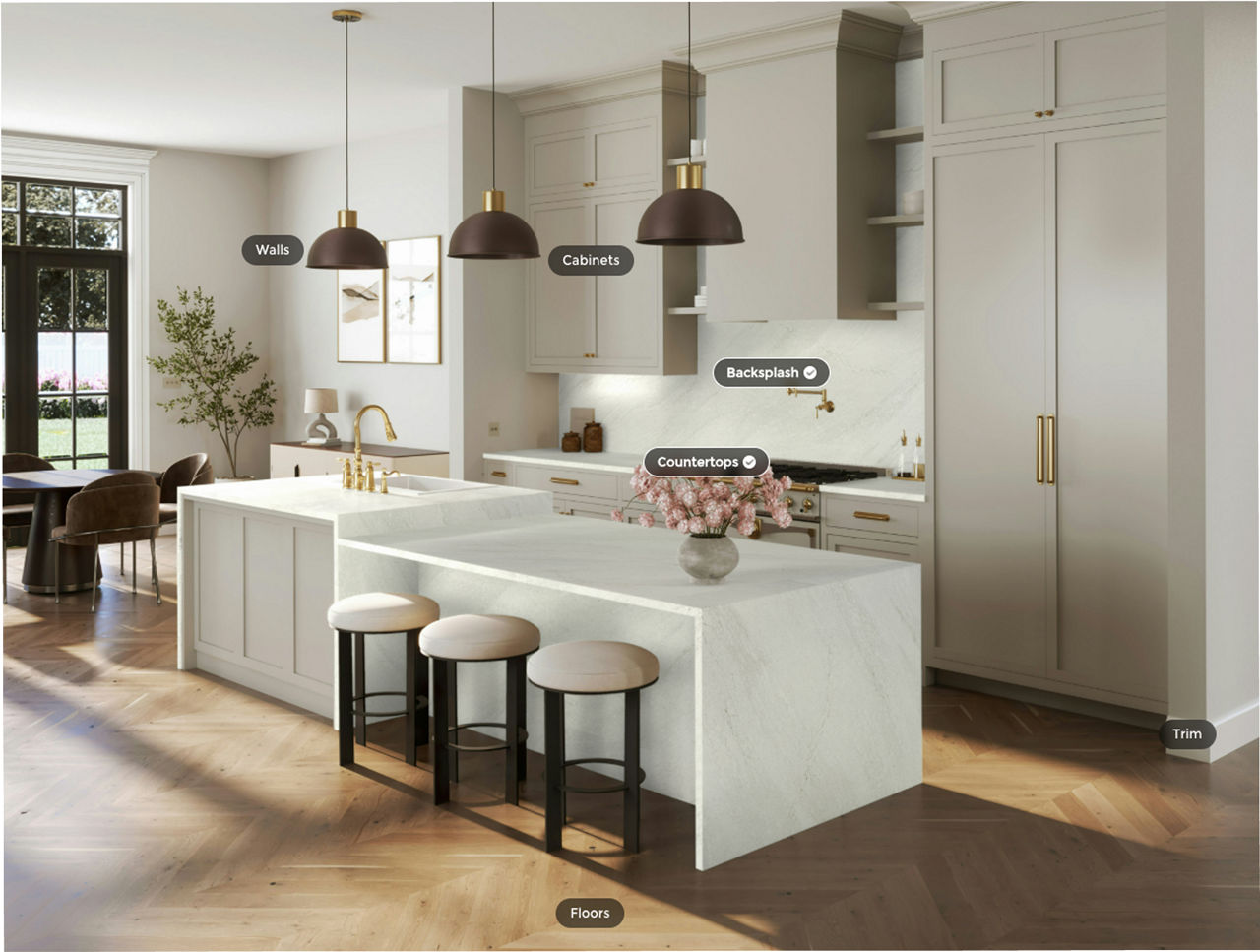
Start your kitchen or bathroom project with a simple tool that lets you preview Cambria quartz surfaces in real spaces - yours or ours.

It's as Easy as 1-2-3
1
Upload photos of your space, or use one of ours.
2
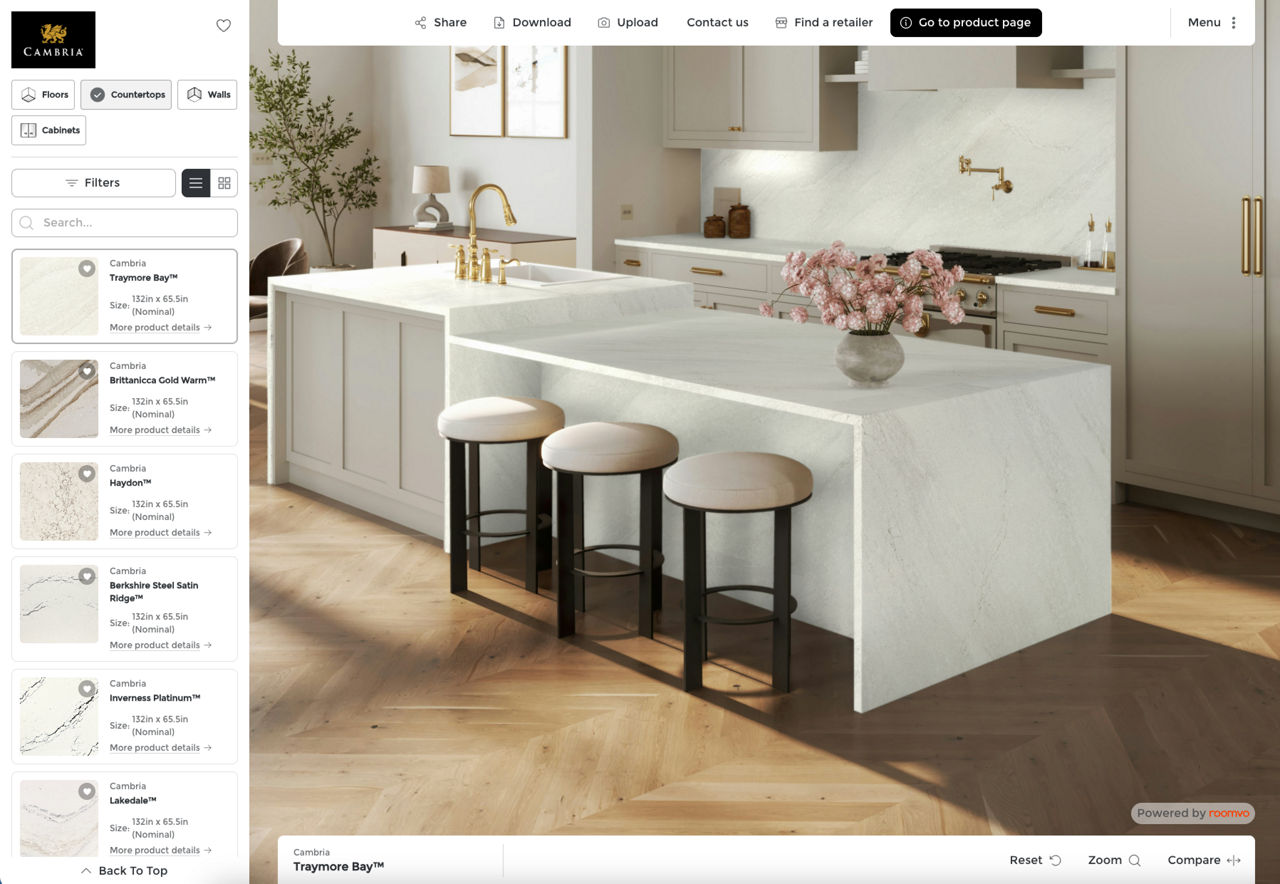
Apply Cambria quartz designs to your kitchen or bath.
3
Visualize your dream in seconds.
Why Use Our Room Visualizer?
Because seeing is believing. With it, you’ll be able to make better-informed design decisions.
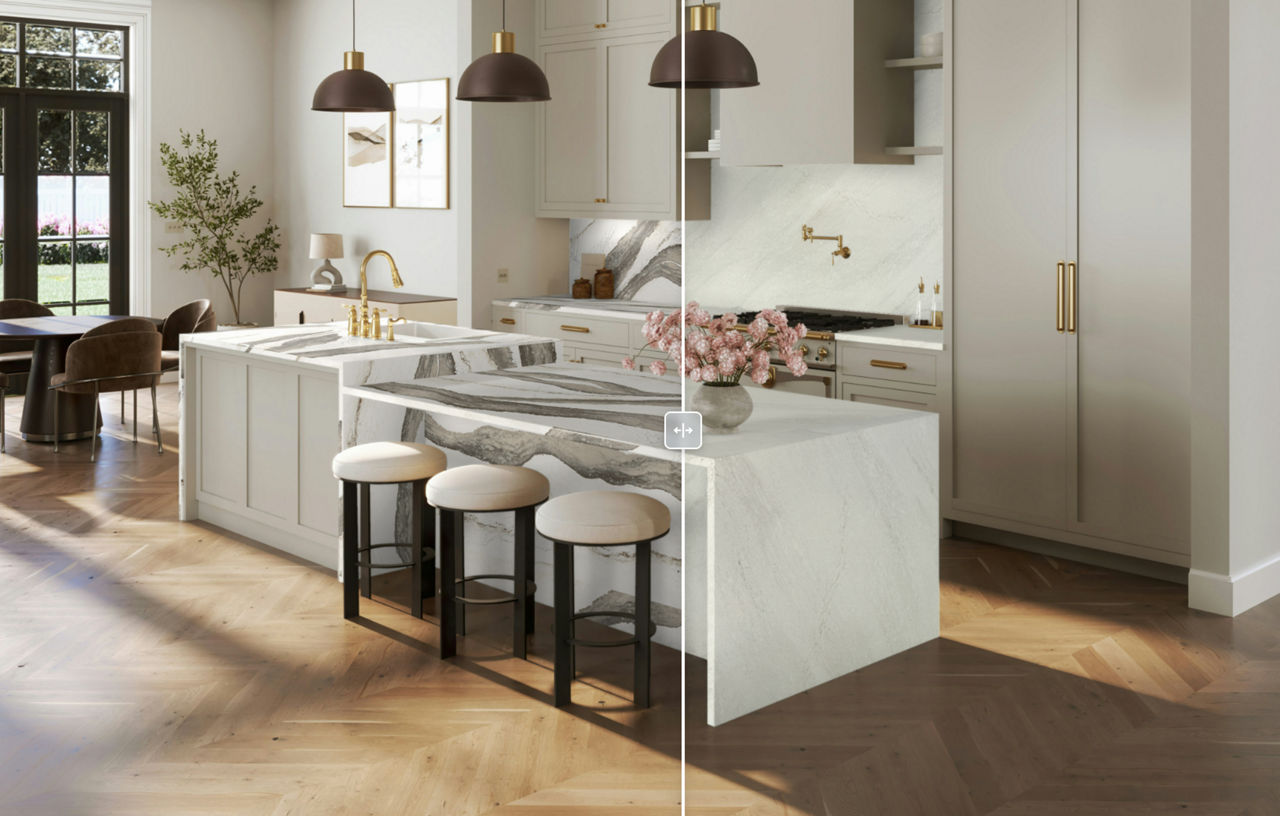
Easily Compare Designs & Colors
See before you choose with realistic previews of Cambria quartz surfaces in your home—so you can make faster decisions based on your real space.
Explore with Ease
Personalized, visual, and easy to use, the Cambria Room Visualizer helps you explore quartz designs and choose with greater confidence.
Fast Results
Compare styles quickly to select your favorites before viewing in person or ordering samples.
Share & Download
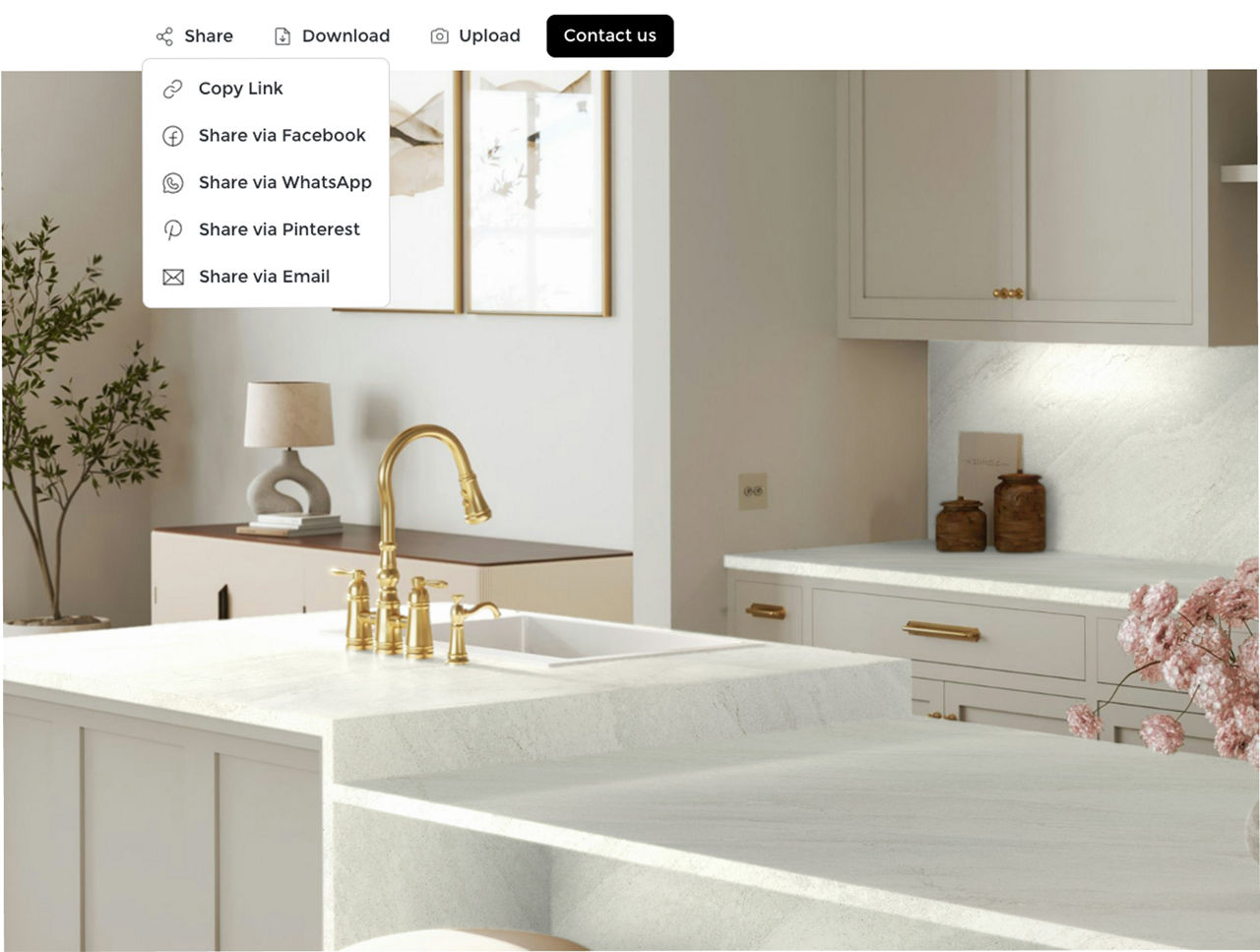
Save your vision. Share it with others. Download your room design or send it to friends, family, or your designer to get input before you decide.
Easily Compare Designs & Colors
See before you choose with realistic previews of Cambria quartz surfaces in your home—so you can make faster decisions based on your real space.
Explore with Ease
Personalized, visual, and easy to use, the Cambria Room Visualizer helps you explore quartz designs and choose with greater confidence.
Fast Results
Compare styles quickly to select your favorites before viewing in person or ordering samples.
Share & Download
Save your vision. Share it with others. Download your room design or send it to friends, family, or your designer to get input before you decide.
Frequently Asked Questions
How do I use the Cambria Room Visualizer?
Upload a photo of your room or choose a sample space. Then explore a variety of Cambria quartz surfaces to see how they’ll look in your kitchen or bathroom.
How can I ensure the most accurate preview of my uploaded room?
Clear the Space: Remove clutter, small appliances, and other distractions from countertops and surrounding areas in your photo.
Optimal Lighting: Shoot in a well-lit environment. Natural, even lighting is best.
Minimize Glare and Reflections: Be mindful of bright lights or windows that might cause glare on surfaces in your photo.
Direct Angle: Take your photo from a direct, straight-on angle. Avoid extreme wide angles or oblique shots.
Exposure Control: If shooting toward a window, ensure your camera or phone is focused on the interior of the room to prevent overexposure of the window and underexposure of your interior space.
How accurate are the previews?
Visualizations are realistic, though lighting, objects, and angles in your space may affect uploaded room results. Use the visualizations as a helpful guide when planning your design.
Can I use the Cambria Room Visualizer on my phone or tablet?
Yes. The tool is mobile-friendly and works on most smartphones and tablets—so you can upload photos, preview designs, and make decisions from anywhere. It’s a quick, convenient way to explore Cambria quartz surfaces.
Can I save or share my visualized designs?
Yes. You can save your room previews and share them with family, friends, or your design professional to help with decision-making.
What happens to the photos I upload?
Photos are used only for visualization and are never shared without your permission. Your privacy is respected throughout the process. See the Cambria Privacy Policy.
How can I change the color of cabinets in an uploaded room?
The Cambria Room Visualizer includes a “Paint more” tool which allows a visitor to manually apply paint colors to a room scene. Please note that painting in the room scene is for visualization purposes only; coloring a quartz countertop will not change the available Cambria product. To use the tool:
- Select the Walls category.
- Select the Benjamin Moore brand in Filters.
- Select a paint color from the Design list.
- The Paint More button will now be active. Click on the Paint More button and the cursor will switch to a paint brush. The paint brush is now loaded with the selected color and will switch colors based on the paint chosen in the Design list.
- To apply the color in the room scene, click the paint brush cursor on an area of the room scene. On a mobile device, a brush icon will not display; simply click on the areas you wish to paint. Note that you will have to apply paint multiple times to fill segments of your walls or cabinets.
